PIXARMORY · FLARE / SUNBURST

GPT Image 2.5: turn an idea into an image

Create a product shot, a striking poster, or a completely new scene with GPT Image 2.5. Start with a description, or upload your own images and explain what needs to change. Choose Flare or Sunburst, set the size and quality, and check the credits before you begin. Your finished image appears here, ready to download or refine.

Fine detail and precise image edits

Optional · JPG, PNG or WebP · up to 4 images · 15MB each

Quality

Advanced quality

Each additional reference adds 3 credits.

Your next idea starts here

Write a prompt, or add a photo and describe what should change.

From a useful prompt to a finished asset

These six case studies explore a practical creative workflow: build an original image, change its setting, and prepare it for a different use. Each published output includes the model, size, quality, and exact prompt used. The product edits also show their source image, so you can judge what changed and what stayed consistent.

A product worth a closer look

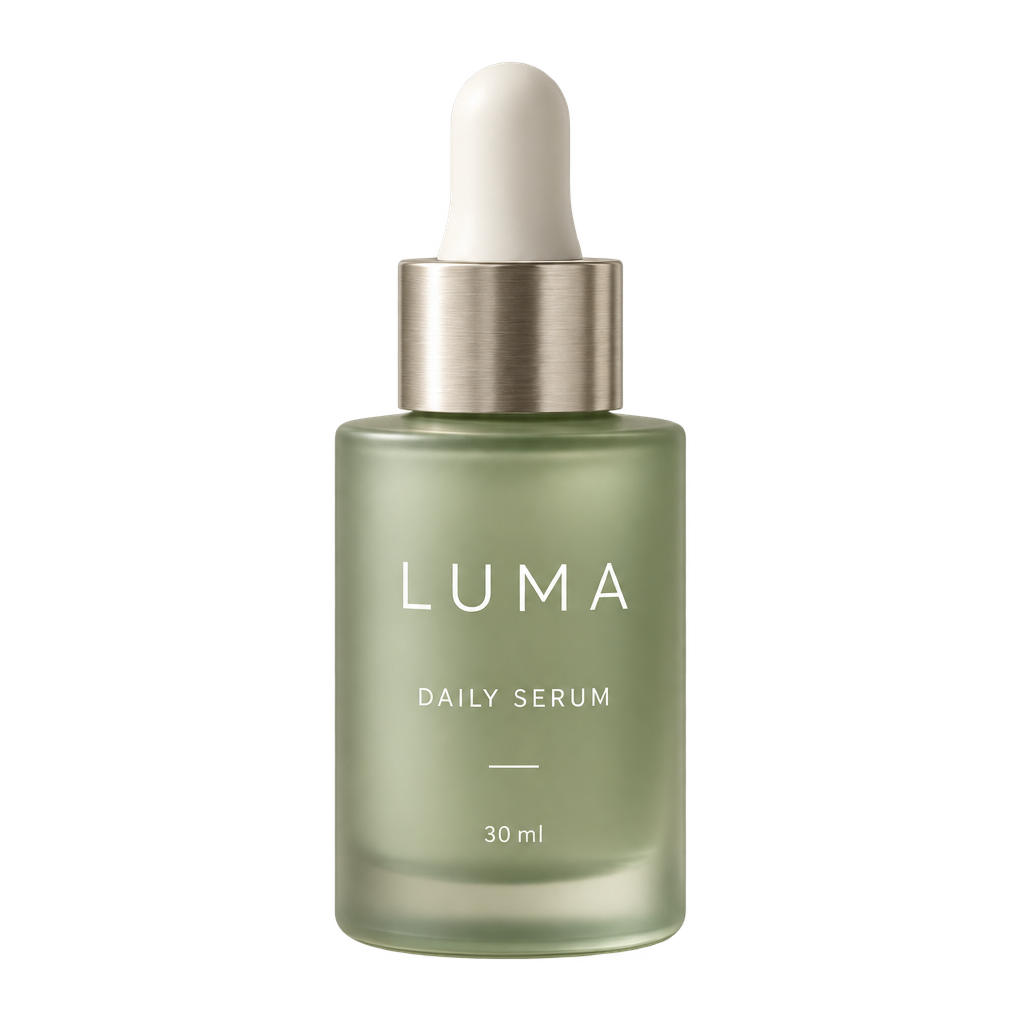
Sunburst · 1024×1024 · high

A product worth a closer look

A fictional skincare brand becomes a clean studio product photograph. The prompt specifies the bottle, label, materials, and lighting, giving the model a clear brief instead of a vague request for something beautiful.

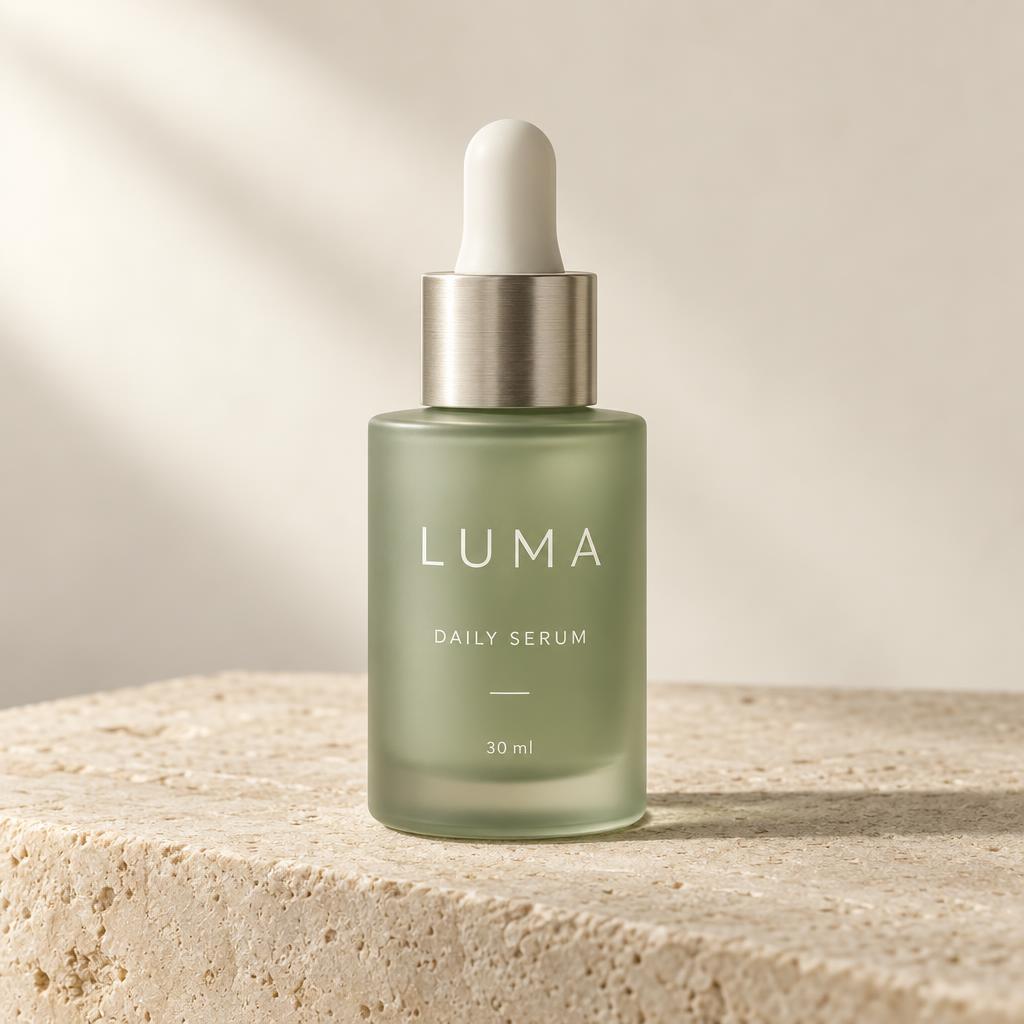
Source: A product worth a closer look
Source
Same bottle, a different story
Edited result

Sunburst · 1024×1024 · high

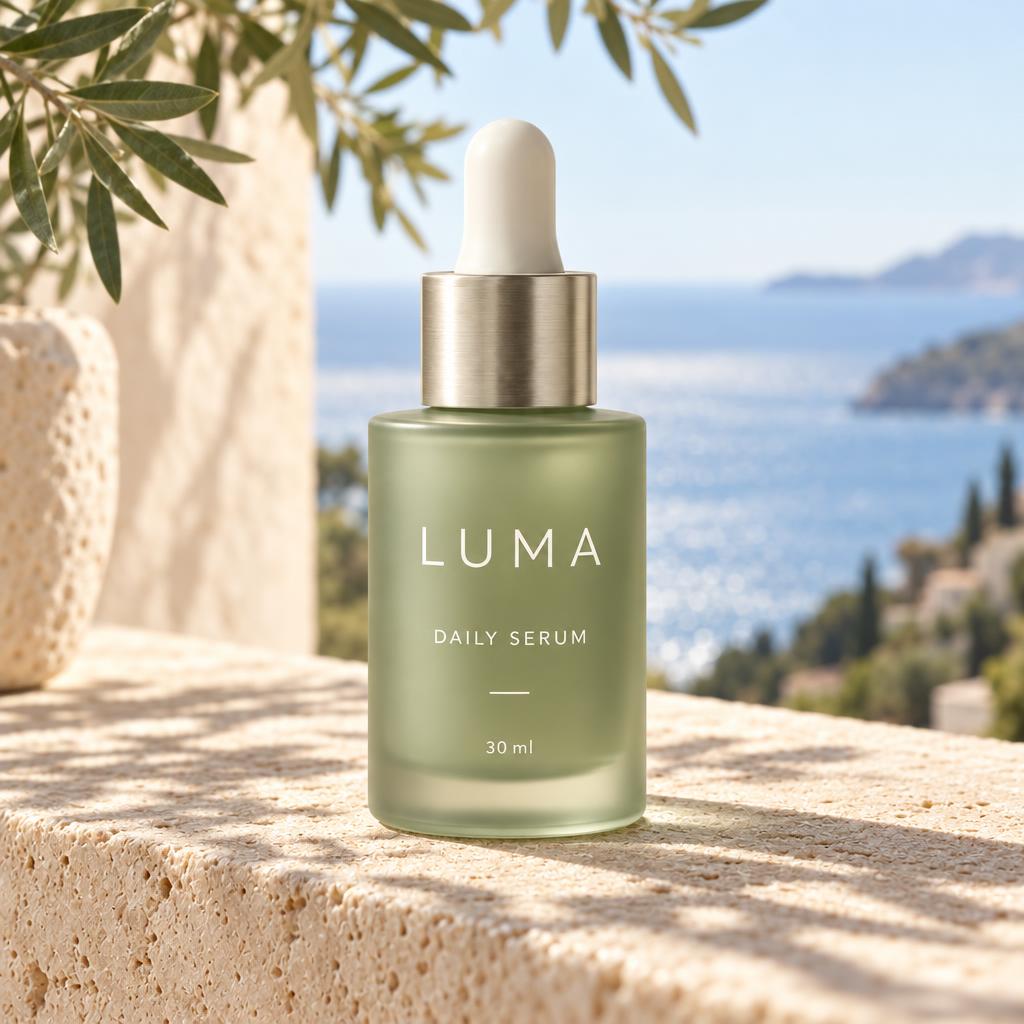
Same bottle, a different story

The studio bottle becomes an outdoor campaign image. The editing instruction keeps the product shape and label while changing the surroundings. Compare the source and result, especially small lettering and reflections.

Source: A product worth a closer look
Source
A cutout ready for your layout
Edited result

Sunburst · 1024×1024 · high · PNG

A cutout ready for your layout

The same product is prepared as a transparent PNG. This is useful for presentation slides and shop layouts. Inspect the bottle edge and shadow on a checkerboard before placing it on a colored background.

A small café with a big announcement

Flare · 1024×1536 · high

A small café with a big announcement

A café event poster combines a warm visual style with a short, specific headline. Supplying the exact words and a simple hierarchy helps. Always check dates, spelling, and fine print before publishing.

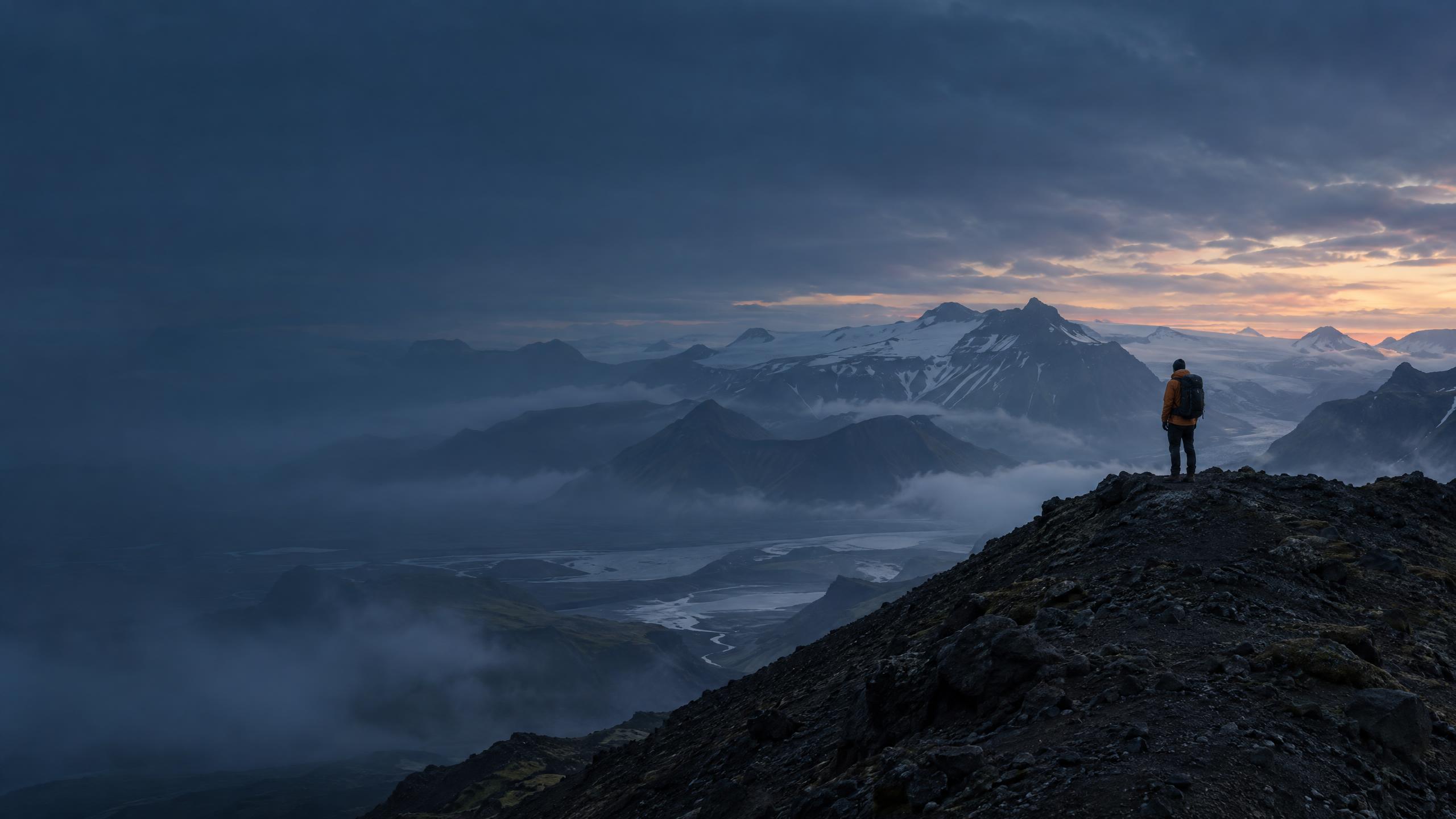
A cinematic website hero

Flare · 2560×1440 · high

A cinematic website hero

A wide composition leaves deliberate breathing room for a website headline. Describe where the subject should sit and which area should remain quiet. The 2560×1440 format is useful for banners and desktop layouts.

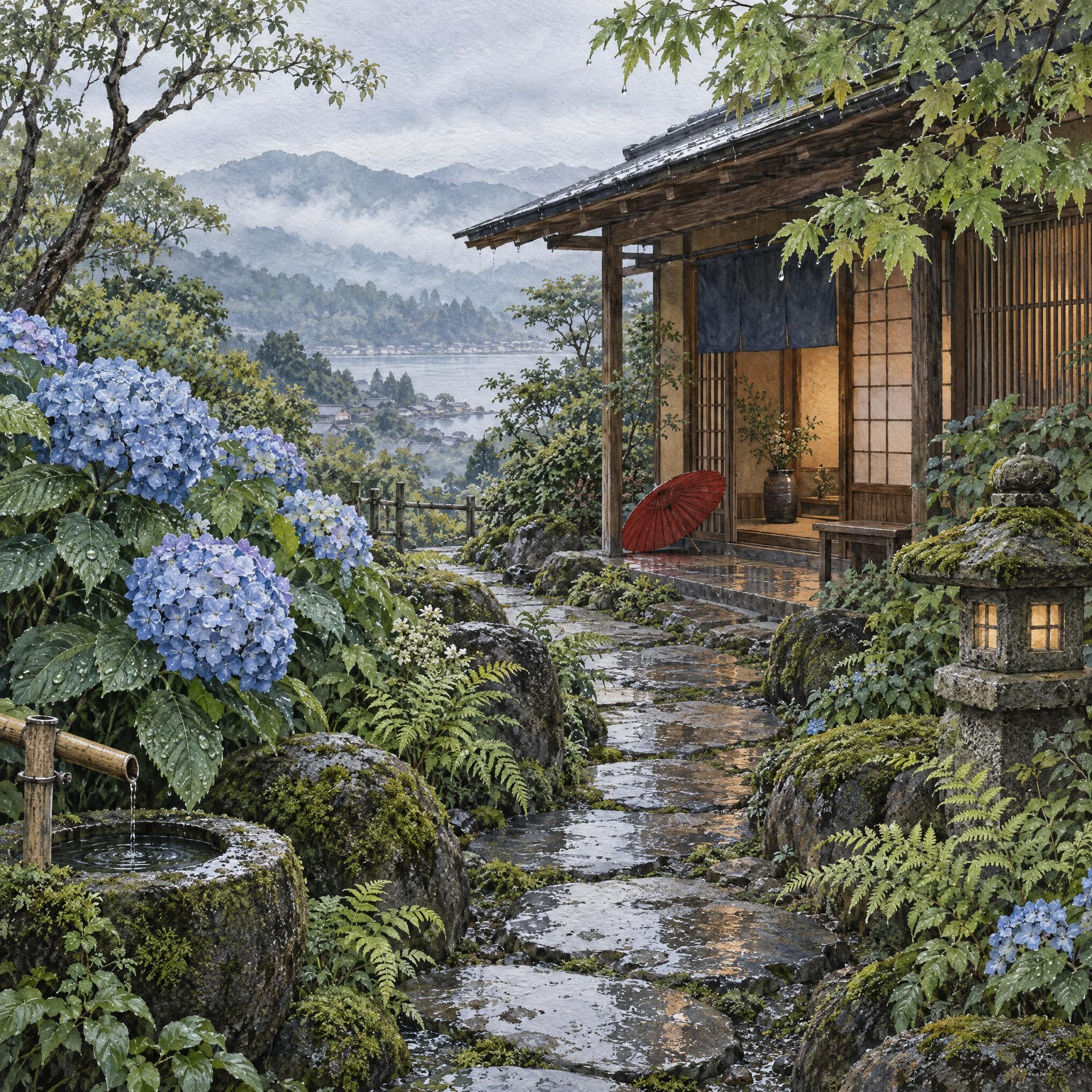
An illustration with room for detail

Sunburst · 2048×2048 · high

An illustration with room for detail

A watercolor scene uses a larger square canvas for fine textures and a balanced composition. This 2048×2048 output is an experimental size. Inspect the full-resolution file rather than judging detail from its thumbnail.

01

Choose the version that fits your job

GPT Image 2.5 offers two versions. Flare focuses on fast, high-quality everyday generation: exploring a campaign, trying a composition, or making a first draft. Sunburst focuses on demanding image quality and precise editing. Choose it when keeping a product recognizable or making a careful change matters most.

They currently use the same credit table on PixArmory. This tool starts with Sunburst at high quality. Switch to Flare without rewriting your prompt. For a useful comparison, keep your dimensions, quality, description, and references the same.

02

Generate from text, or edit what you already have

Describe the subject, setting, composition, and style. A useful prompt need not be long: “A green glass perfume bottle on pale stone, soft morning light, square product photograph” gives GPT Image 2.5 a clear brief. Add requirements that matter to the finished asset, such as space for a headline or an uncluttered background.

For editing, upload up to four JPG, PNG, or WebP references, each up to 15MB. Explain their roles and what should change: “Keep the bottle and label. Replace the background with a sunlit bathroom shelf.” Inspect the result; careful editing cannot promise that every tiny detail will stay exact.
03

Pick a size for the place your image will appear

Choose 1024×1024 for square shop images and social posts. The 1536×1024 landscape and 1024×1536 portrait options suit articles and posters. For website banners, try 2560×1440; 1440×2560 suits vertical layouts.

GPT Image 2.5 also offers a larger square and 4K presets. Outputs above 3,686,400 pixels are experimental, including 2048×2048 and both 4K orientations. Develop the idea at a smaller size first. A bigger file is not automatically a better image.

04

Quality and transparency without complicated settings

High is the recommended starting point for finished assets. Low helps you explore a rough direction; medium is a lower-cost step between drafts and finals. Advanced options expose xhigh and max for demanding detail. They cost more without guaranteeing an improvement.

Ordinary scenes download as JPEG. Turn on transparency for an isolated object, sticker, or layout graphic; GPT Image 2.5 then returns PNG with an alpha channel. Describe the object and desired edges in your prompt.

05

Write a clear brief, then change one thing at a time

A clear brief covers the subject, arrangement, style, and constraints. For a poster, quote the exact headline and say which words should be largest. For products, name the material and light direction. Avoid conflicting styles.

When the first result is close, choose “Edit this result” and request one focused change. Say what to keep: “Keep the framing and bottle. Make the wall warmer and remove the plant.” Write in your own language.

06

See the credits before you generate

Credits depend on size, quality, and reference count. A high-quality 1024×1024 image costs 12 credits from text or 15 with one reference. A 1536×1024 high-quality output costs 10 or 13 respectively. Each extra reference adds 3 credits.

Sign in to use GPT Image 2.5. If your balance is too low, the recovery interface shows the required credits. The server checks prices again; a changed quote needs another confirmation. Failed paid generation follows the refund workflow.

07

Finish the image with the rest of PixArmory

Prepare the result for its destination. Crop a portrait, resize a banner, or compress a large download before putting it on your website. The format converter can prepare another file type.

For a single edit, stay here and download the result. For a longer task, choose GPT Image 2.5 in the homepage editor or AI Image Agent. The Agent combines available workflow tools and shows its plan.

Questions before your first image

Should I choose Flare or Sunburst?

Start with Flare for quick everyday image ideas, or Sunburst for demanding quality and careful edits. Both support generation, reference images, and transparency. They are currently priced alike on PixArmory.

Can GPT Image 2.5 edit a photo rather than create a new scene?

Yes. Add your photo and explain the changes. You can supply up to four references, for example a product photo and a style reference. Identify their roles and describe what must stay the same.

Do I need a ChatGPT subscription or my own API key?

You use your PixArmory account and credits in this tool. There is no API-key field and you do not need to paste a personal key into the page. Your PixArmory balance determines whether a generation can proceed.

Does a larger resolution mean higher quality?

Dimensions and rendering quality are separate choices. A larger canvas gives you more pixels; the quality setting changes the rendering budget. Start with the shape you need and high quality.

Can I write prompts in German, Dutch, or Japanese?

Yes, you can describe your image in your own language. For text inside the image, supply the exact words and placement. Keep short headlines clear and check the result for spelling, accents, dates, and numbers.

How do I get a transparent image?

Enable the transparent background option before generating or editing. The tool selects PNG automatically so the background can remain transparent. Describe what should be isolated and inspect the edges.

What happens if a generation fails?

Your prompt and references remain available. A failed paid generation enters the existing credit-refund workflow, and the interface reports its status. If a request is still unresolved, check its status first. A retry after a settled failure is a new generation; the tool does not automatically buy another image.

Can I keep editing or reduce the file size afterwards?

Use ‘Edit this result’ to make the output your next reference. The displayed price changes to the editing price. You can also use PixArmory’s cropper, resizer, compressor, and format converter after downloading.

Prepare your image for its final destination

GPT Image 2.5 Image Generator & Editor | PixArmory