The CompleteAI Photo Editor
Describe the change. Keep the image yours.
Upload a photo, say what should change, and choose the quality that fits the job. No masks, layers, or design experience.
AI workbench
Universal AI Photo Editor
Upload, describe, and generate. Start with a proven edit or write your own.
Prefer to choose the model and settings yourself? Open Quick Editor →
10 AI tools
One AI tool for every kind of edit
The editor above handles anything you can describe. When a job has one clear goal, these focused AI tools finish it in a single step.
AI Image Generator
Create original images from a written brief, in any style you describe.
Open tool →AI Photo Enhancer
Bring back clarity, detail, and natural texture in blurry or dull photos.
Open tool →AI Background Remover
Cut the subject out cleanly, down to hair and soft edges.
Open tool →AI Image Upscaler
Add real resolution when ordinary resizing turns soft.
Open tool →AI Image Extender
Change the aspect ratio and let AI paint the new surroundings.
Open tool →AI Photo Colorizer
Give black and white photos believable, natural color.
Open tool →The everyday basics are here too: free browser tools to compress, convert, resize, or crop an image. See all 30 tools.
PixArmory Showcase
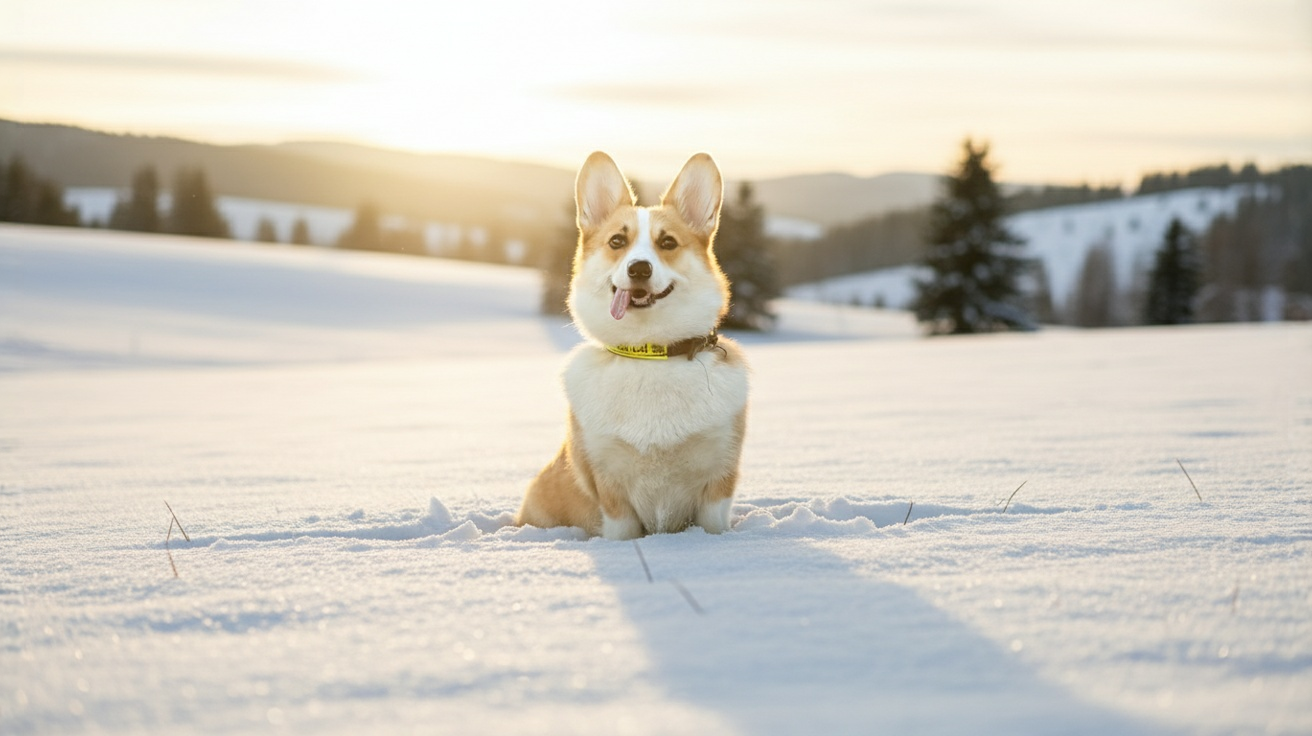
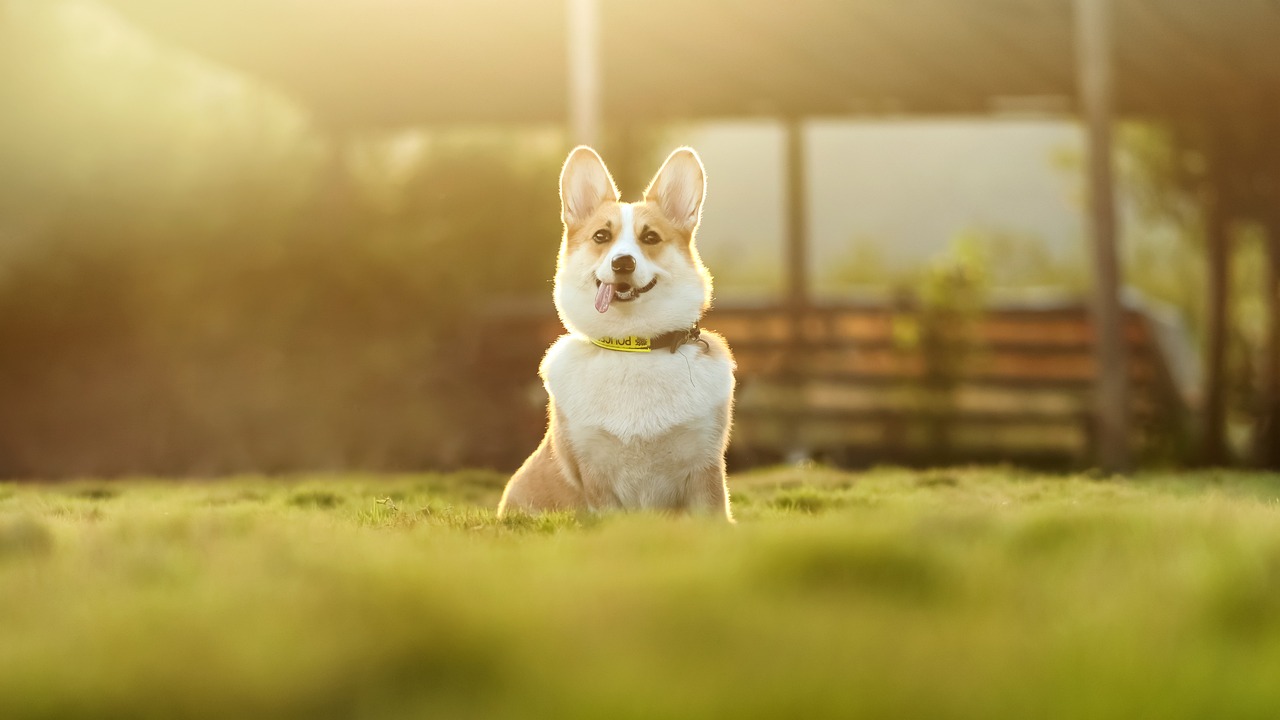
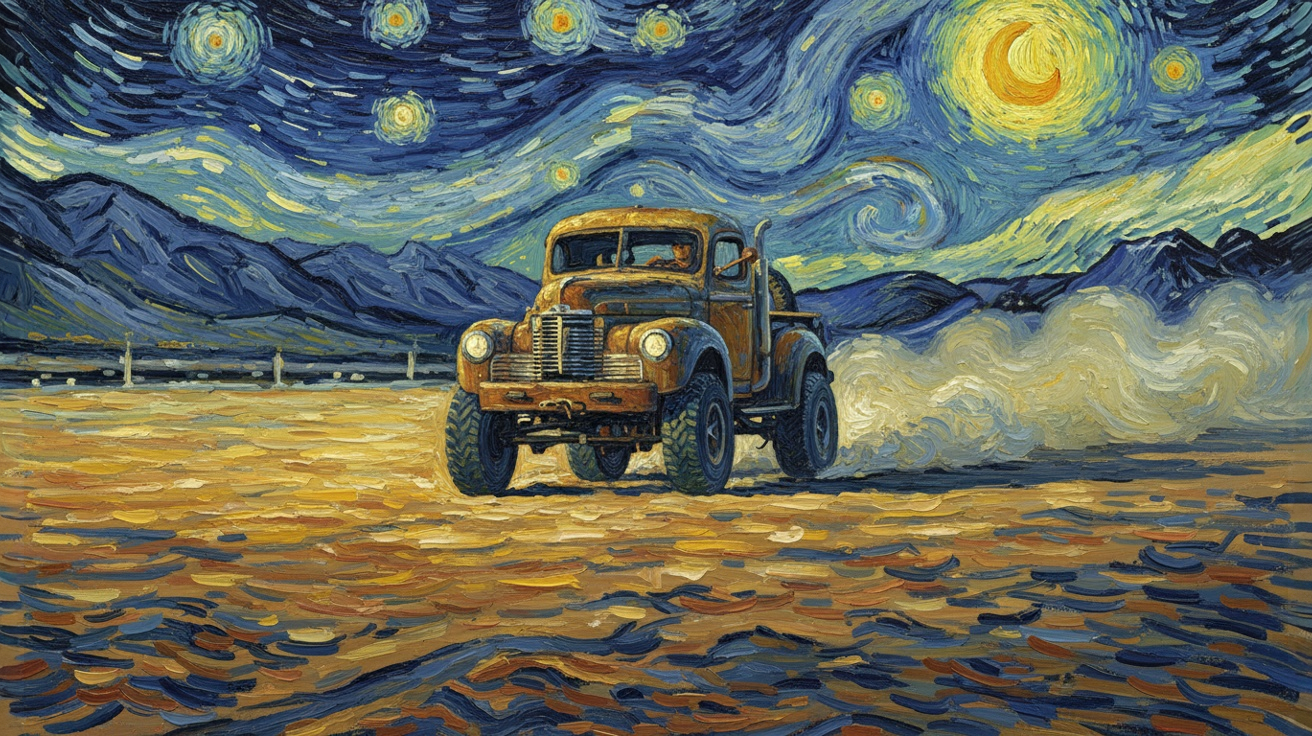
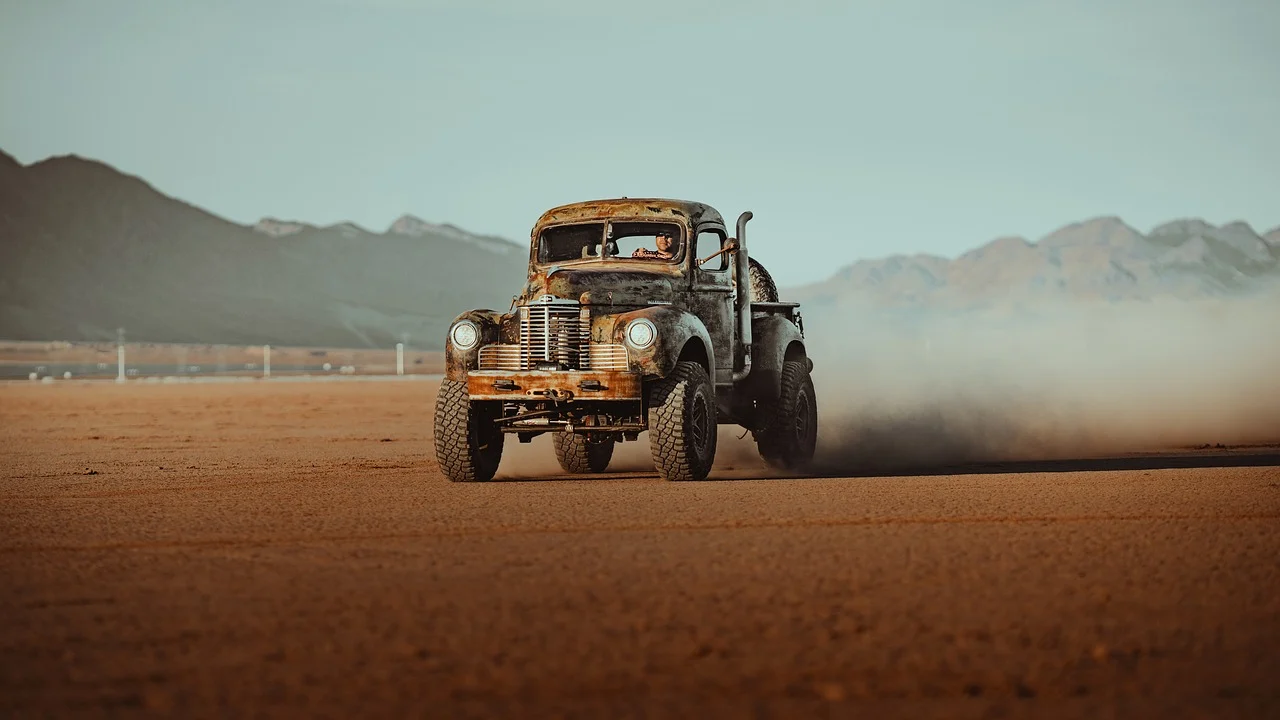
See what the AI image editor can do with a photo and a clear, simple request. Open a card to compare the original and the finished image.


Why edit with PixArmory?
The AI photo editor handles the fiddly parts while you stay in control of the result.
Consistent Likeness
Faces, pets, and products stay recognizable through outfit, background, or style changes--no uncanny drift between edits.
Natural-Language Prompts
Type the change you want in plain English. No masks, layers, or selection tools--the AI image editor works out what to touch.
Blend Multiple Images
Combine up to 14 reference photos into one seamless composition, with consistent lighting from edge to edge.
Artistic Style Transfer
Borrow the look, texture, or palette of one image and apply it to another in a single step.
Multi-Turn Editing
Refine your image step by step--each pass keeps the quality and subject identity of the one before.
Frequently Asked Questions
Everything you need to know about your new AI photo editor toolkit
1. What is PixArmory?
PixArmory is an AI photo editor and a collection of practical online image tools. You can describe an edit in everyday language, then compress, convert, resize, crop, enhance, or reuse the result without jumping between websites.
2. Do I need design skills to use it?
No. Just upload a photo and type what you want in plain English (for example, "replace the background with a sunset" or "make this look like a LEGO figure"). The editor handles the masking, lighting, and blending for you.
3. How fast is the processing?
Most images are processed in 10-30 seconds, depending on the model you pick, image size, and how complex the edit is.
4. What's included in the free tier?
Many everyday tools, including image compression, conversion, resizing, and cropping, are free and run in your browser. New accounts also receive 30 free credits to try AI editing or generation. A Lite official Gemini edit costs 8 credits, and the cost is always shown before you run a paid AI tool.
5. How does pricing work?
PixArmory uses credits instead of a flat per-image fee. Lite edits cost 8 credits, GPT Image 2 costs 15 credits, and higher-resolution Gemini/Nano Banana modes cost more based on the selected model and resolution. Subscribe monthly or yearly to get larger credit bundles through our pricing plans and use the model that fits each job.
6. Do I own the images I create?
Yes. Images you create or edit with PixArmory are yours to use, share, and monetize, subject to our terms of service. We do not claim ownership of your work.
7. What file formats are supported?
You can upload JPG, PNG, and WebP images. AI-generated and edited outputs are delivered as JPG.
8. Can I use it for commercial projects?
Yes. Many users rely on PixArmory for e-commerce visuals, marketing creatives, and product mockups. Just make sure your uploads comply with copyright law.
9. Is my data secure?
Yes. Your content is stored securely in the cloud, and you can delete your uploads anytime from your history page.
10. Which AI model should I choose?
Choose Lite for quick, low-cost edits. Nano Banana 2 is a good all-round choice, while Nano Banana Pro supports larger 4K results. Try GPT Image 2 for posters, packaging, or other images with text and structured layouts. You can switch models for each job.